Field guide · Capture to reminder
How to Turn Screen Text into a Reminder on Mac
A privacy-first workflow for turning screen text into a timed Mac reminder with local OCR, user confirmation, and a visible Today List.
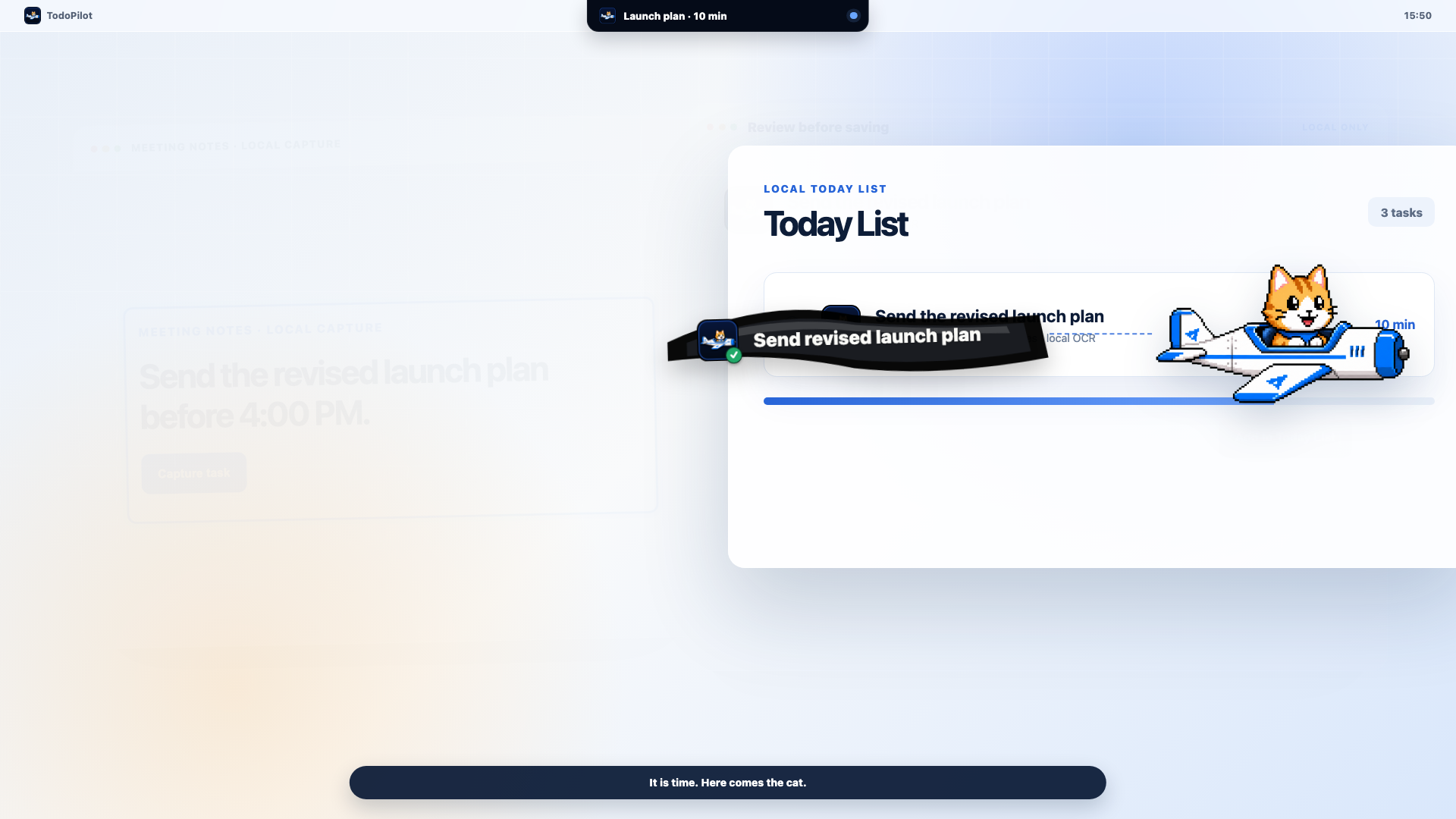
The reliable workflow is not “take a screenshot and let AI save whatever it guesses.” Capture only the useful region, recognize text locally, review the proposed task, choose when it should return, and save only after you confirm.
What to know before you set it up
- Use macOS screen capture only as the input boundary; the screenshot does not need to become a cloud attachment.
- Apple Vision can recognize text on-device and return candidate observations.
- OCR text is evidence, not a finished task: review the title, date, time, and source before saving.
- A reminder without a time can be easy to forget; choose today, tomorrow, or an exact date and time when the task must return.
A capture pipeline you can trust
Five steps from screen text to a reminder
- 01
Select only the useful screen region
Capture the sentence, meeting note, ticket, or deadline that contains the next action. A smaller region reduces unrelated text and makes the review faster.
- 02
Recognize the text locally
Apple Vision's text-recognition request analyzes the captured image and returns recognized-text observations on the Mac.
- 03
Turn OCR output into a candidate task
Extract a clear action, source context, and only the dates actually supported by the text. If the deadline is ambiguous, leave it unset.
- 04
Review the title and choose a time
Correct OCR mistakes, confirm what “Friday” means, and choose today, tomorrow, or an exact date and time.
- 05
Save to Today List, then let it return
The task becomes durable only after confirmation. Keep the next task in the status island and send the cat pilot when the reminder is due.
Pixels stay on the Mac
Why local OCR is the right first boundary
A screenshot may contain customer names, private messages, internal URLs, calendar details, or code. Uploading the entire image just to identify one task creates a broader data boundary than the workflow needs.
Apple's Vision framework provides text recognition through RecognizeTextRequest and returns candidate text observations. TodoPilot uses that on-device OCR path by default, so the screenshot pixels do not need to leave the Mac. If an optional AI step helps structure the recognized text, it should receive only the minimum text and context required—not the screenshot binary.
Local OCR answers “what text is visible?” User confirmation answers “what task should I save?” Those are separate decisions.
OCR and AI produce candidates
The user confirmation step prevents silent mistakes
Text recognition can confuse similar characters. Language models can turn a descriptive sentence into a useful action, but they can also overstate certainty. The safe rule is simple: no candidate enters Today List until the user confirms it.
Task title
Is it an action you can complete, not just copied text?
Date and time
Does the source actually establish them? Resolve relative dates.
Source context
Keep enough context to return to the work without retaining the image.
Save boundary
Only the confirmed task moves into Today List and reminder scheduling.
This matters most for deadlines. If a screenshot says “send it later,” the app must not invent 4:00 PM. Ask the user for a time or save an unscheduled task. Explicit uncertainty is safer than a precise fiction.
Capture is only half the job
Choose when the task must come back
A task list prevents loss; a scheduled reminder prevents neglect. Apple Reminders itself distinguishes dated, timed, early, and all-day reminders. The same practical distinction applies here:
When the time arrives, TodoPilot's status island keeps the next task visible and the cat pilot can tow the reminder banner across the screen. The goal is not spectacle for its own sake; it is a reminder that is hard to miss and easy to defer responsibly.
Good inputs make better tasks
What screen text is worth capturing?
A concrete follow-up
“Send the revised launch plan before 4:00 PM.”
Keep the action and the explicit time.A meeting decision
“Alex will review the migration checklist on Thursday.”
Confirm whether the task belongs to you before saving.A Code Agent outcome
“Implementation finished; manual privacy review remains.”
Save the review as the next action, not the finished implementation.An ambiguous request
“Can you take care of this later?”
Rewrite the action and choose the return time yourself.Code Agent results can enter the same local attention layer without pretending every terminal stop is success. The companion Code Agent notifications guide explains the official lifecycle boundaries.
Practical answers
Frequently asked questions
Can I turn text on my Mac screen into a reminder?
Yes. TodoPilot lets you select a screen region, recognizes the text locally with Apple Vision, proposes a task for review, and saves it to Today List only after you confirm the title and reminder time.
Does TodoPilot upload the screenshot for OCR?
No by default. Screenshot pixels stay on your Mac, and Apple Vision performs OCR locally. Only text and the minimum context needed for an optional AI structuring step may leave the device.
Why must I confirm an OCR-created task?
OCR can misread characters, and inferred dates can be ambiguous. Confirmation prevents an uncertain title or invented deadline from silently entering your task list.
Can I choose an exact reminder time?
Yes. Choose today, tomorrow, or a specific date and time. If the source text does not contain a reliable deadline, TodoPilot should ask you rather than inventing one.
How does the cat pilot reminder help?
When the chosen time arrives, TodoPilot can send the cat pilot across the screen with the task banner. You can act now or defer the reminder instead of relying on a notification you may miss.
Primary references
Official sources used for this guide
- Apple Vision RecognizeTextRequest
- Apple Vision: Recognizing Text in Images
- Apple Reminders: add dates or locations
- Apple Reminders notification guide
Product documentation changes. We verified these boundaries on July 28, 2026 and avoid treating a lifecycle event as proof that the underlying work passed review.